Studio: the page where you make your game (para studio)
Studio is a page in your browser with the producer's chat, a Play button, a Check button and a Save box. This is the guide for the friend making a game. If you are changing Studio itself, the notes are in studio-maintainers.md.
Nothing to install (no Node, no Python), no account of ours and no telemetry. The only thing
that leaves your computer is what the claude or codex program you installed sends to
Anthropic or OpenAI when you chat.
First run in 60 seconds
- In the folder, run
tmp/para studio. Your browser opens the page (the terminal prints the link too). - Look at the pill in the top bar. Green Ready 4/4: go on. Red Setup needed: click it, read the one line under the check that is not ready, do that, then press Check again.
- Press Where did we leave off? or Start a game, and talk to the producer.
Anything else not working: If something goes wrong.
Open it
In the folder, run:
tmp/para studio
It opens the page in your browser and prints a link too. The link carries a random key that changes every run, so use the new link each time. Ctrl+C in that terminal stops Studio; it also closes the game window Studio opened and ends a chat turn that is still running. Closing the browser tab does not stop it.
--port Npicks the port,--no-openonly prints the link,--game NAMEstarts on one game.- Going back to an earlier save point and setting work aside are not in the page yet (use
para save --back/--set-asidein the terminal).
The page
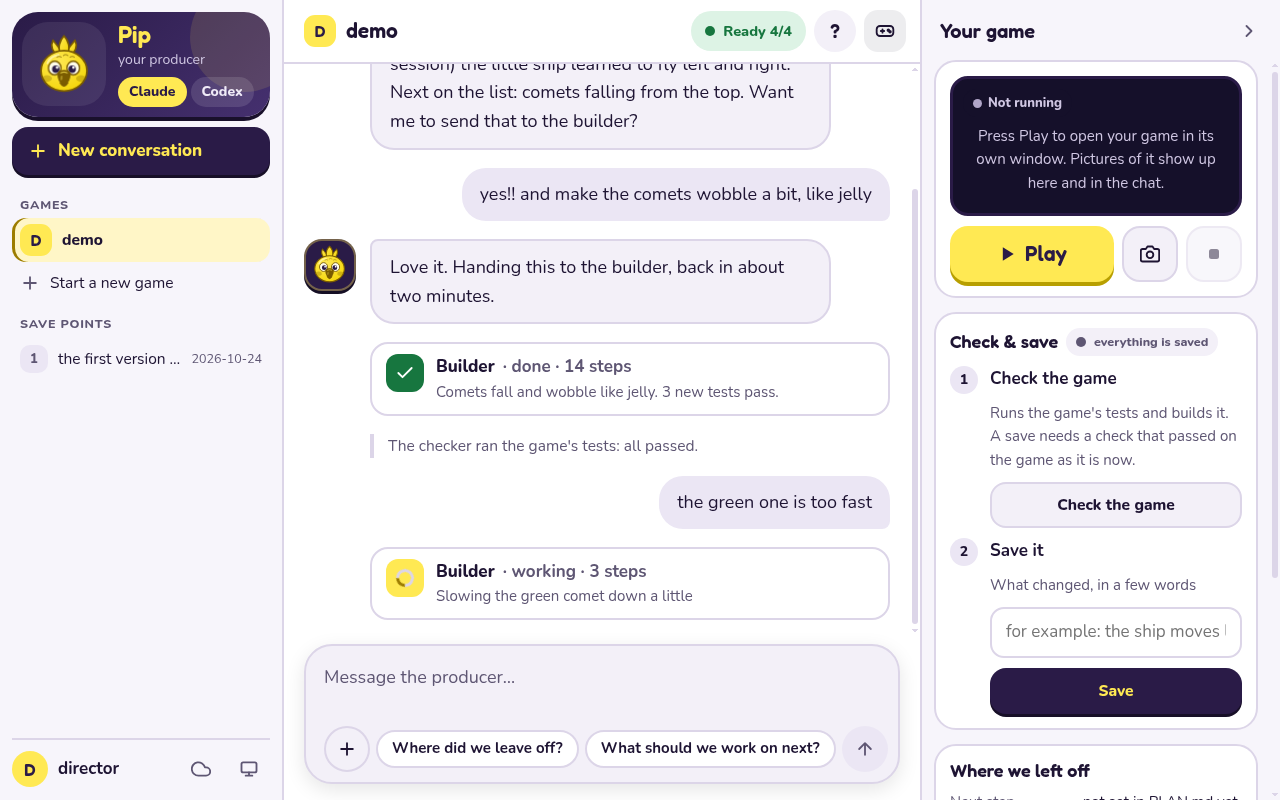
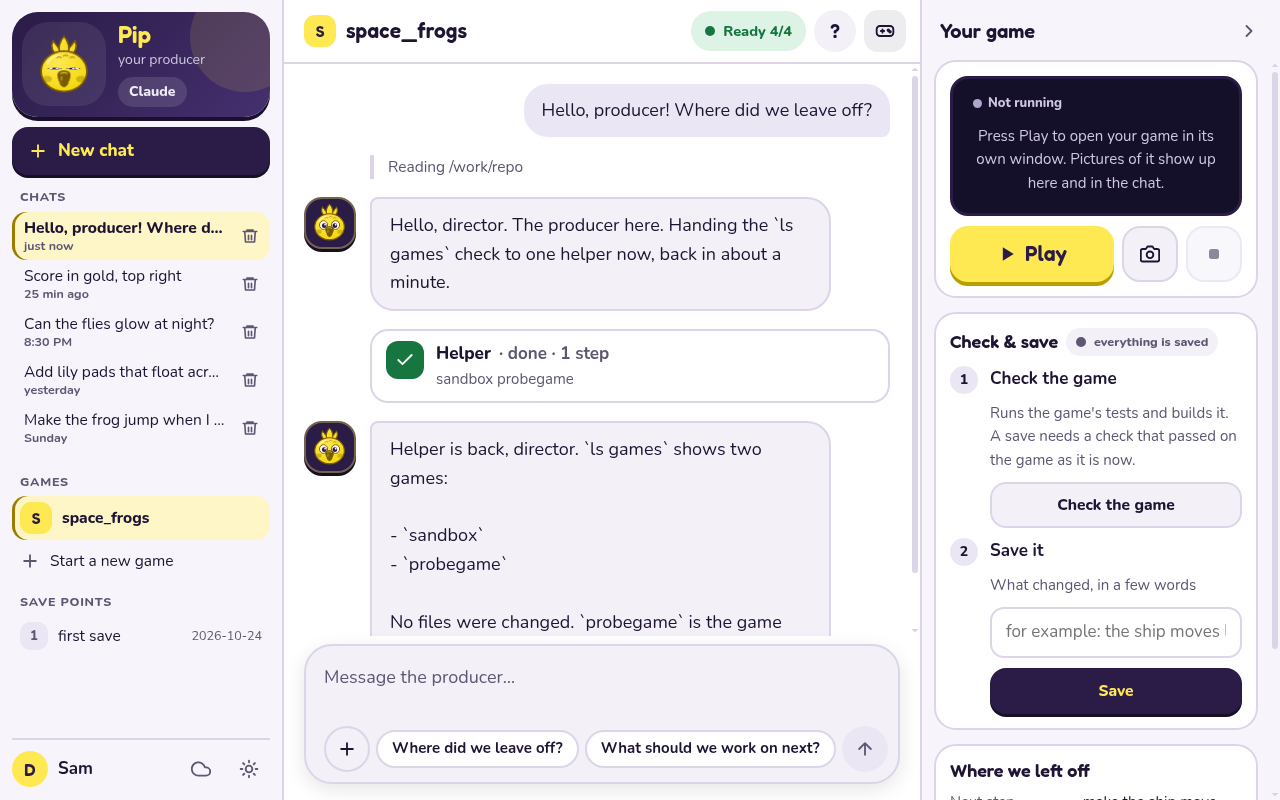
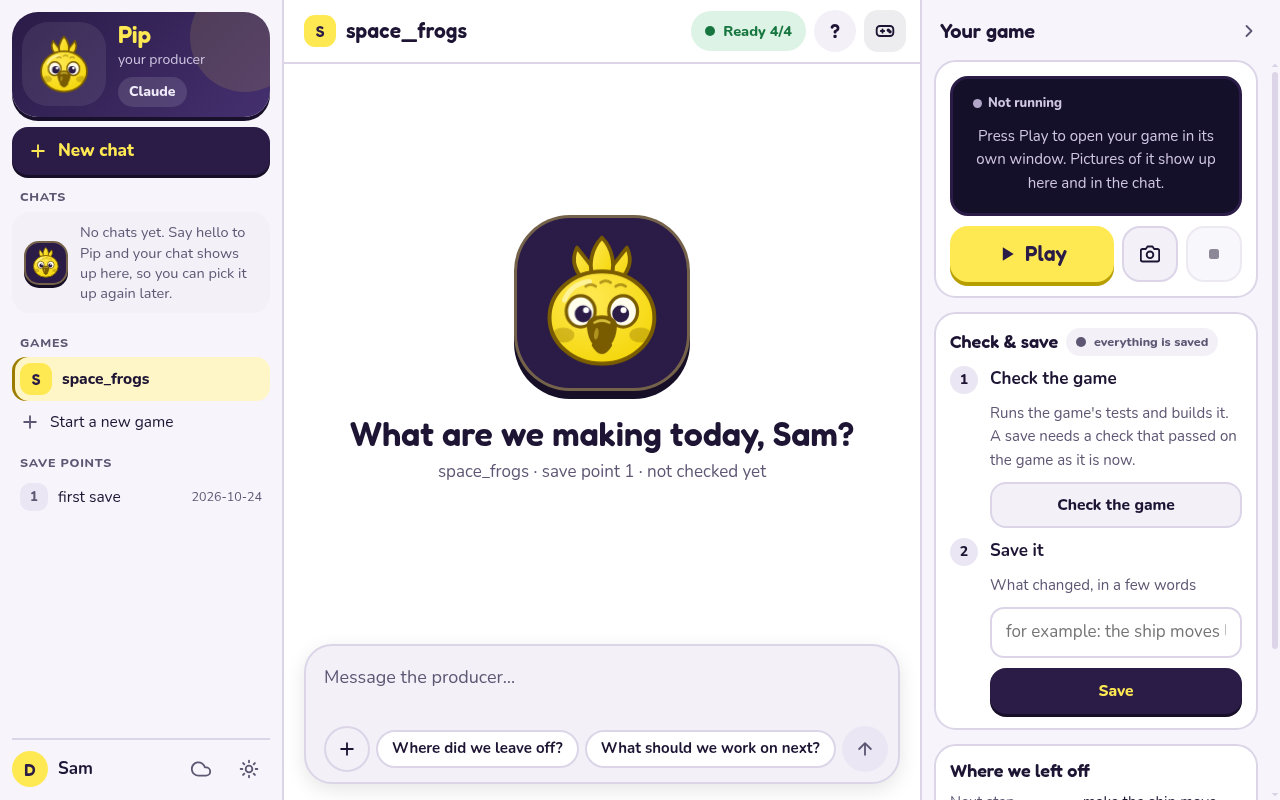
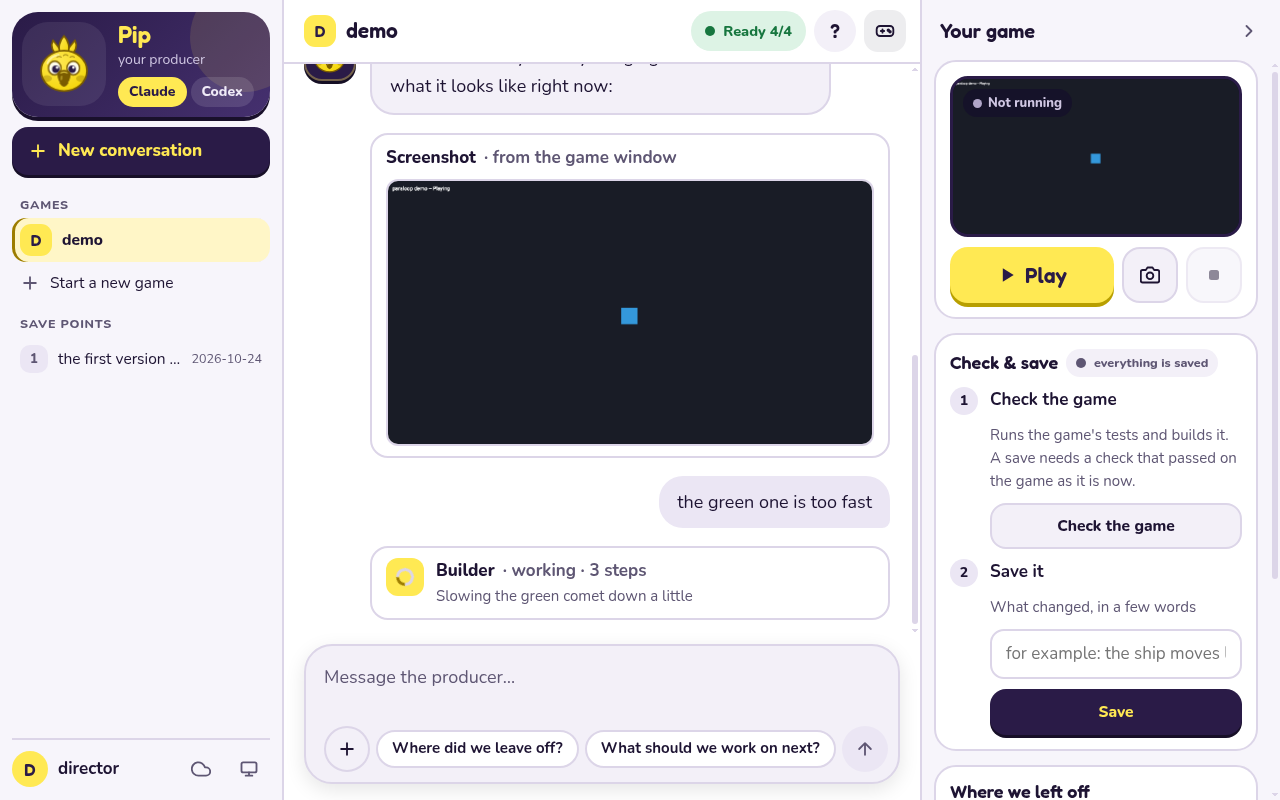
The page is a desk in three columns, big and round on purpose:
- On the left, Pip's card: the producer's face (it bobs while idle, thinks while a turn
runs and talks when an answer arrives) and, when this computer knows more than one, the
Claude / Codex pick for the game. Under it New chat, your Chats with this
game's producer (see "Your chats" below), the games in this folder (click one to switch),
Start a new game, the save points, and at the bottom
your name, Back up online (the cloud; it asks first and says what goes online and where)
and the light / dark / follow-the-computer switch. The name on the card is Pip unless the
game's
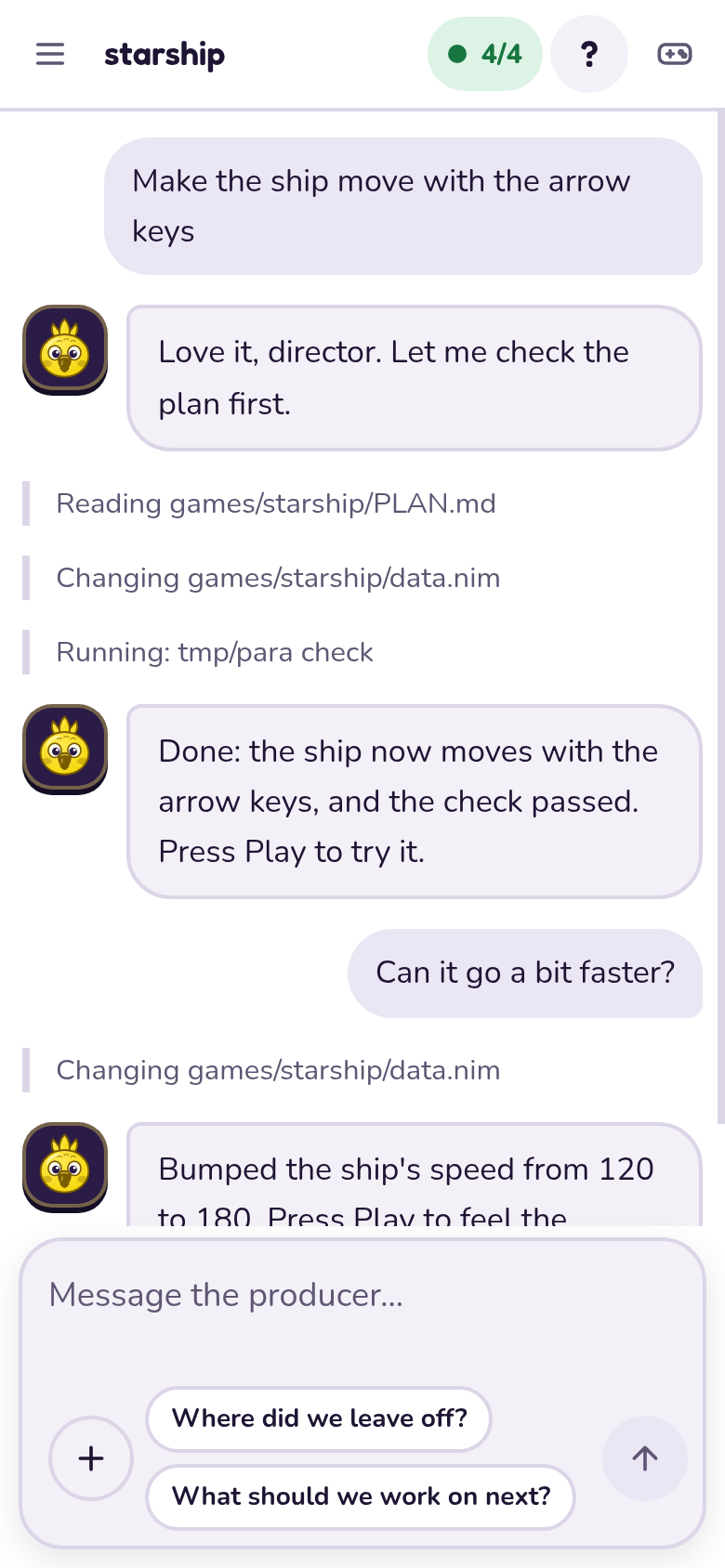
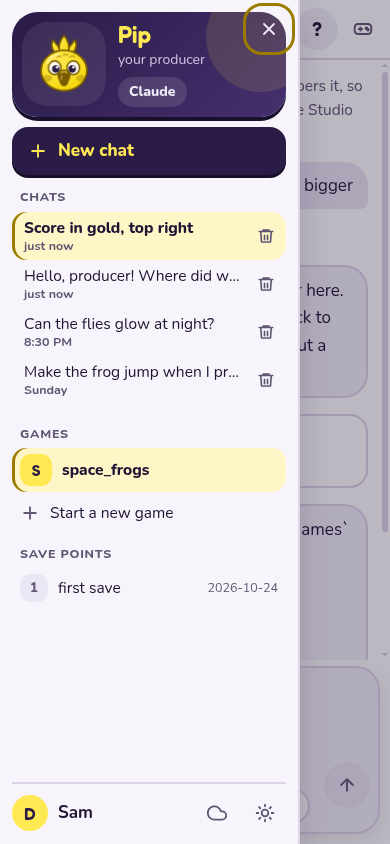
PLAN.mdsaysCall the producer:something other than "producer". On a phone this column is a drawer behind the menu button. - In the middle, the conversation and the message box. Under the box's text are the + menu (Show me a screenshot, Check the game, Save…) and two quick replies, "Where did we leave off?" and "What should we work on next?". The top bar has the game's name (a menu when there are several), a Running pill while the game window is open, the startup checks pill, ? for help, and the button that shows or hides the game panel.
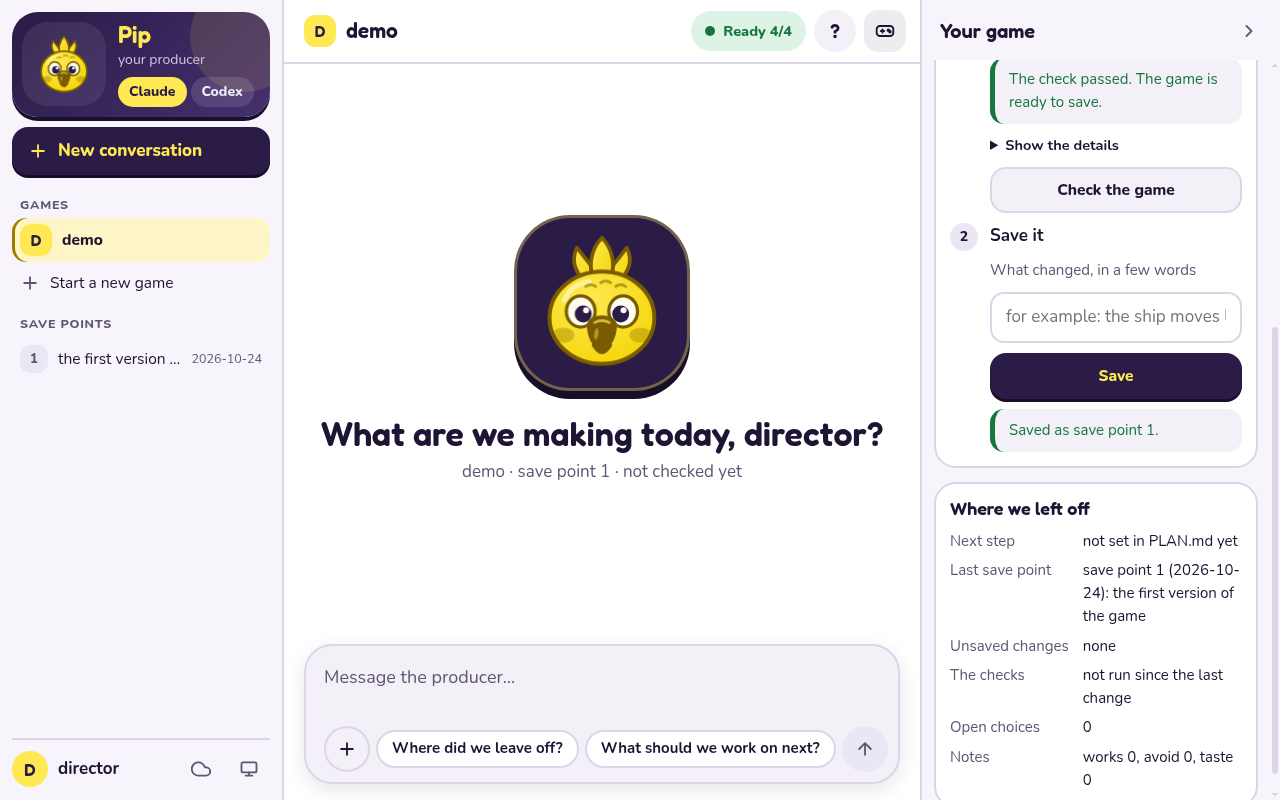
- On the right, the game panel: Play (or Play again), Show me a screenshot and Stop game, the newest picture of the game window, Check & save (Check the game, then a note and Save; the badge says what is next: unsaved changes, ready to save, or everything saved), and Where we left off. On a window narrower than 1100px the panel slides in over the chat from that button instead.
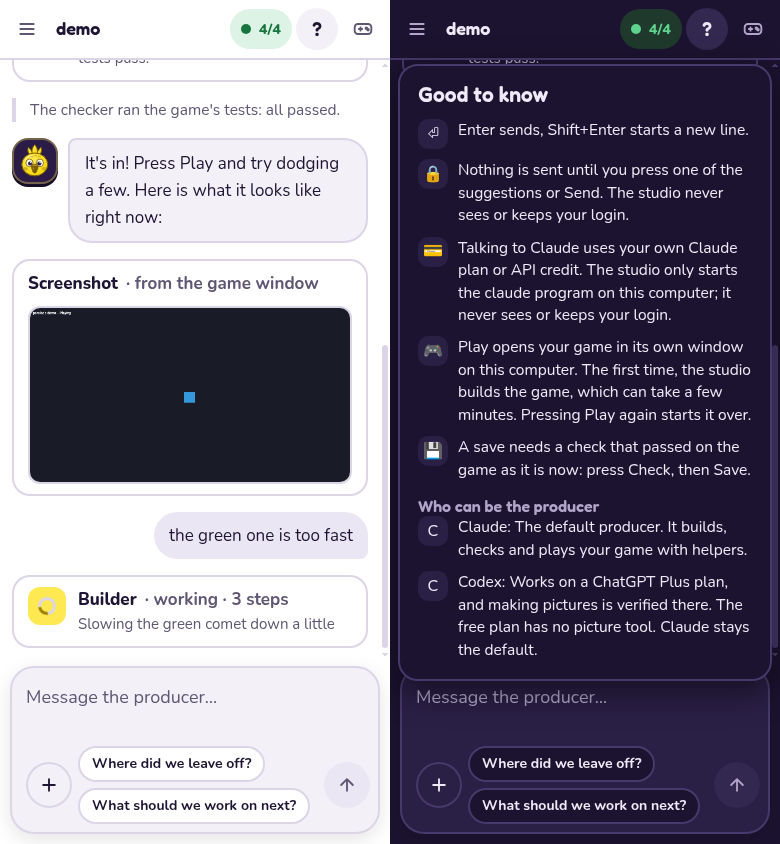
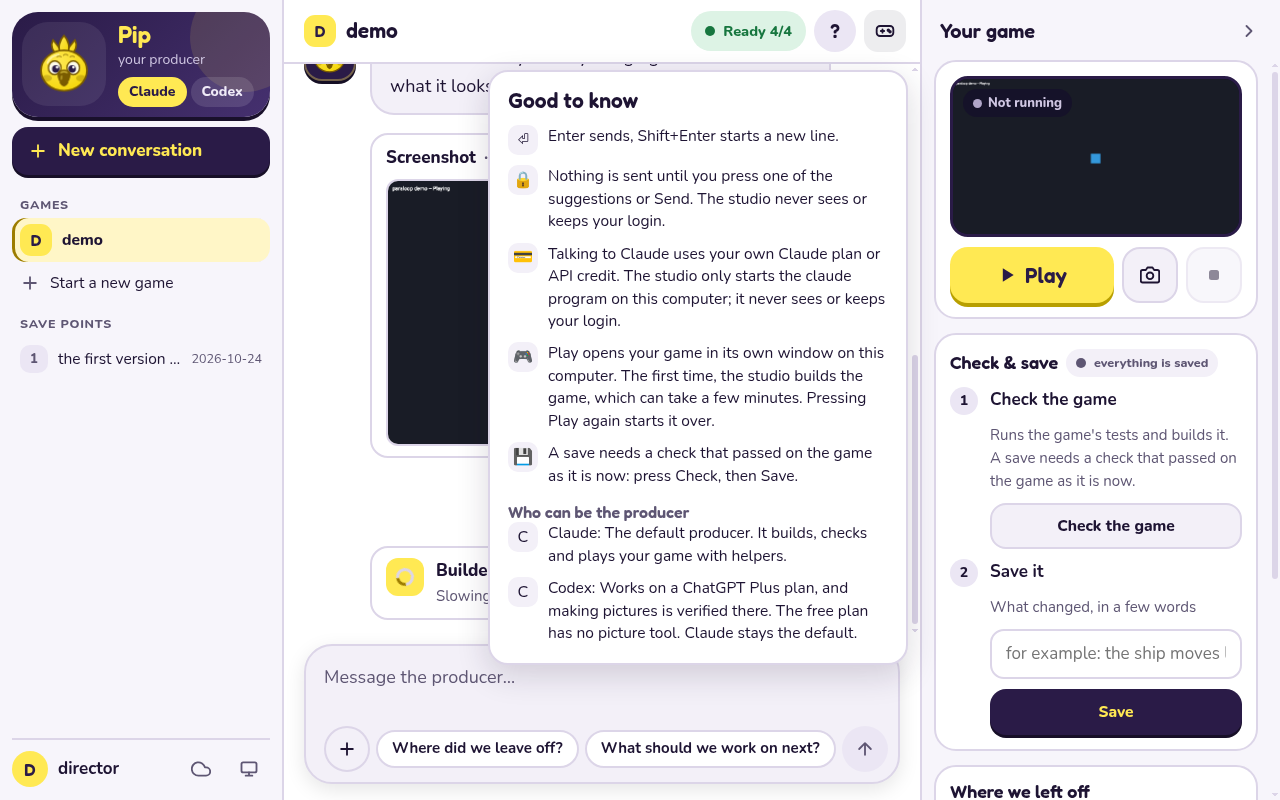
Help (?) holds the fine print: Enter sends and Shift+Enter starts a new line; nothing is sent until you press a suggestion or Send, and Studio never sees your login; who pays (your own Claude plan or API credit, or your ChatGPT plan for Codex); what Play does; that a save needs a passing check; and, with more than one producer, one line on each (Claude is the default; only Codex, on a ChatGPT Plus plan or better, can make pictures).
Startup checks
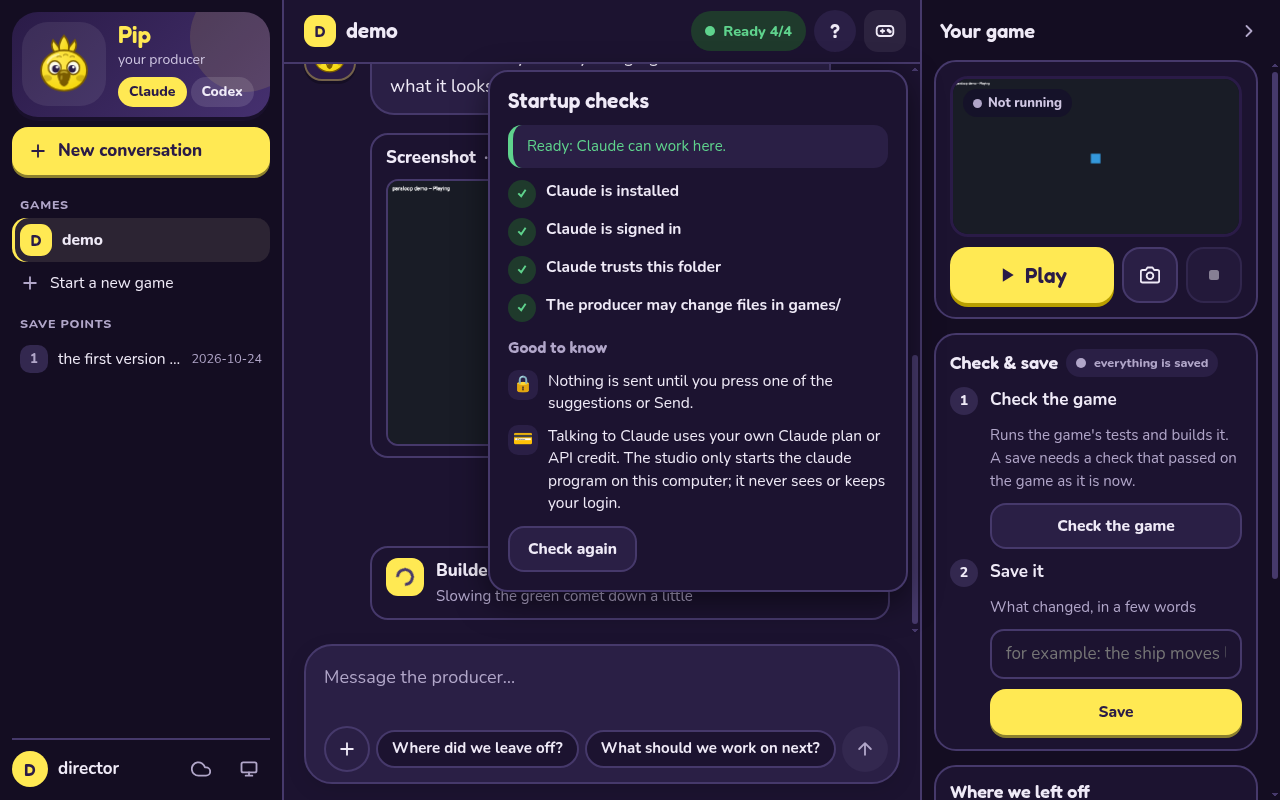
The first thing the page does, before any chat, is look at your setup. The answer is the pill in the top bar: green Ready 4/4 when everything is fine, red Setup needed (or amber when something could not be checked) when it is not. Click the pill to see every check with a tick, or, for one that is not ready, one plain line on how to fix it. When something is not ready the checks open by themselves the first time. Fix it, then press Check again.
It is only information: it never blocks Play, Check, Save or the chat, and it makes no model call, so it costs nothing.
| Check | What it means | If it is not ready |
|---|---|---|
| Installed | the claude (or codex) program is on this computer |
install it from the setup page the check names |
| Signed in | you are signed in to that program | open a terminal, run claude, and follow its sign-in |
| Folder trusted | Claude knows it may use this folder | open a terminal in this folder, run claude, and choose Yes, I trust this folder |
Edits in games/ allowed |
the producer may change files in your game folder | put the file back: git checkout -- .claude/settings.json |
A check Studio cannot answer safely says Could not check with a hint, instead of a guess. Codex gets the first three checks and no edit check.
Under Optional the checks also list Lavish (visual boards), a program Studio works fine
without (see Visual boards). It is never counted in Ready and never a
failure: when it is missing, the row says what it is and shows the one command that adds it,
tmp/para board install, with a Copy button. The page installs nothing itself.
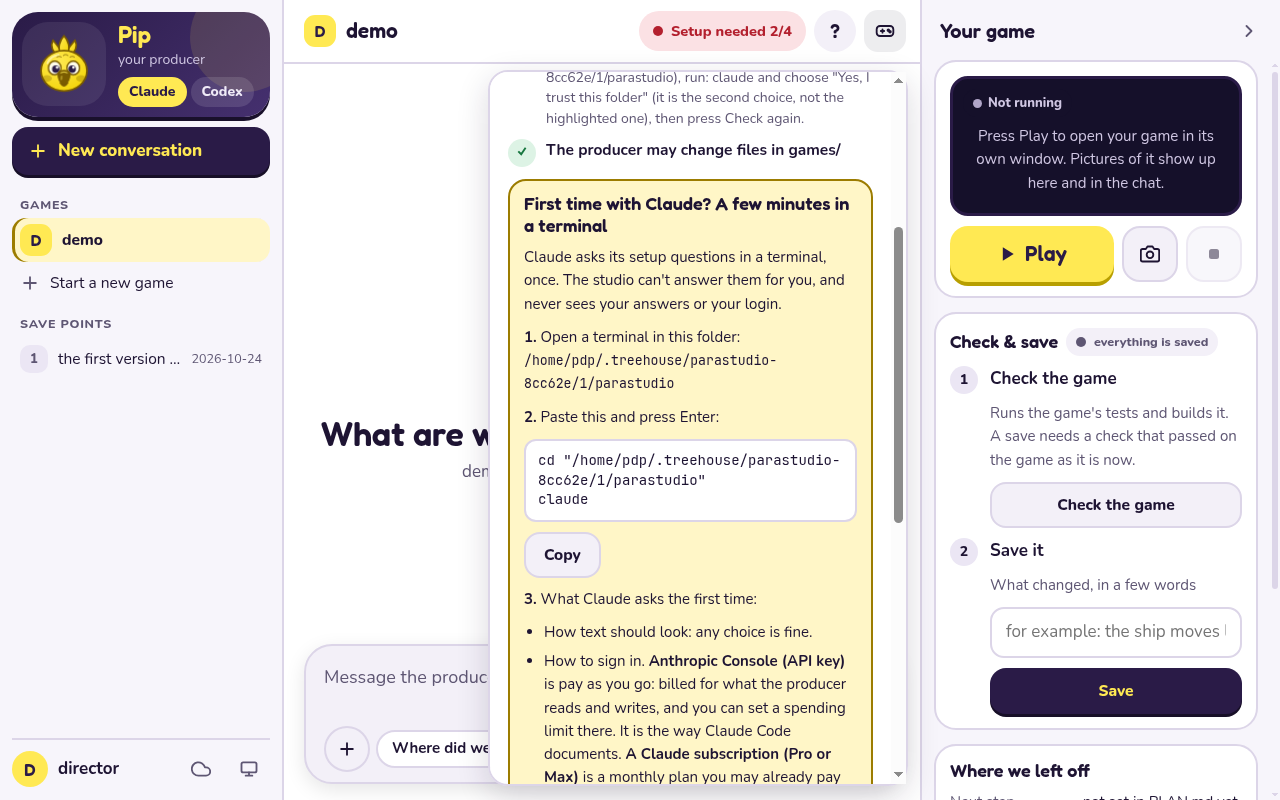
The first-run card. When Claude is installed but not signed in, or does not trust this folder, the checks also show a card for the first run, which happens in a terminal the page cannot answer for you. It shows the folder to open a terminal in and the command to paste, with a Copy button, and says in plain words what Claude asks the first time:
- how text should look (any choice is fine);
- how to sign in: an Anthropic Console API key (pay as you go, the way Claude Code documents), or a Claude Pro or Max subscription (your own choice; the chats count toward its usage limits), or a company account;
- "Do you trust the files in this folder?": choose Yes, I trust this folder. The highlighted choice is No, exit, so move down first; pressing Enter without moving leaves the folder untrusted.
On macOS the card also has Open a terminal here. Linux has no one standard terminal and Windows has several, so there the card only offers the command to copy. The card only shows text and copies it: Studio never reads, keeps or touches a login, and never types into the terminal.
A message sent while the setup is broken is kept. If a turn ends in an error before the producer said anything (not signed in, out of credit, not installed), your message goes back into the message box (in front of anything typed since, with a blank line between) and the page says to fix the problem and press Send again. The startup checks are asked again at the same time.
If something goes wrong
- The page says it lost touch with Studio. The terminal window running
tmp/para studiowas closed or stopped. Run it again and use the new link (the key in the link changes every run). Closing the browser tab does not stop Studio. - "codex" is not installed, or not signed in. Same as the next item for Codex: install it from
https://developers.openai.com/codex/cli, run
codexonce in a terminal and sign in, then press "Check again". A turn that ends with "no usage left" is Codex's plan talking; wait for it to reset (the message says when, if Codex told us) or pick Claude. - "claude" is not installed, or not signed in. The startup checks pill turns red and the
checks open with the fix (and, for signing in, the first-run card), and so does the chat if you
send a message anyway; your message stays in the box to send again. Install Claude Code from
Anthropic's setup page (https://code.claude.com/docs/en/setup), open a terminal, run
claudeonce and sign in, then press "Check again" on the page. Studio never asks for a login or key itself. - The producer says it is not allowed to run commands or change files in your game folder.
Claude Code ignores the folder's allow-list until you have said Yes to its trust question there
(the startup check says "Claude does not trust this folder yet", and so does the chat): open a
terminal in the folder, run
claude, choose Yes, I trust this folder (the highlighted choice is "No, exit", so move down first), then press "Check again" on the page. If the refusal names a file outsidegames/, that is on purpose (see "What the producer can and cannot change"). - Play says the game did not build. Ask the producer to fix it; "Show the details" has the
lines the compiler printed. If it says Nim or a C compiler was not found,
nim --versionandgcc --versionneed to work in the terminal you started Studio from (see windows-first-game.md for what to install). - Play says there is no screen. On Linux a window needs
DISPLAYorWAYLAND_DISPLAY; over a remote connection (SSH) there is none. Run Studio on the computer in front of you. - Play says the graphics driver cannot start OpenGL, or the game stops straight away and says nothing. Update the graphics driver. A virtual machine often has no real graphics at all; that is not a bug in your game (see the top of windows-first-game.md).
- The port is busy ("could not start listening"). Run
tmp/para studio --port Nwith another number, or leave--portout and Studio picks a free one. - A firewall or antivirus asks about Studio. It only listens on your own computer, so no prompt should appear; if one does, "Cancel" and "Allow" both work, and please tell us it happened.
- Where are the logs? Studio writes none. The page's "Show the details" boxes hold the last
lines of a failed build or a window that stopped; the terminal where you started it only shows
the link. The pictures are in
tmp/studio/shots/. - How do I stop it? Press Ctrl+C in the terminal where you started it. That closes the game window Studio opened and ends a chat turn that is still running.
Start a game
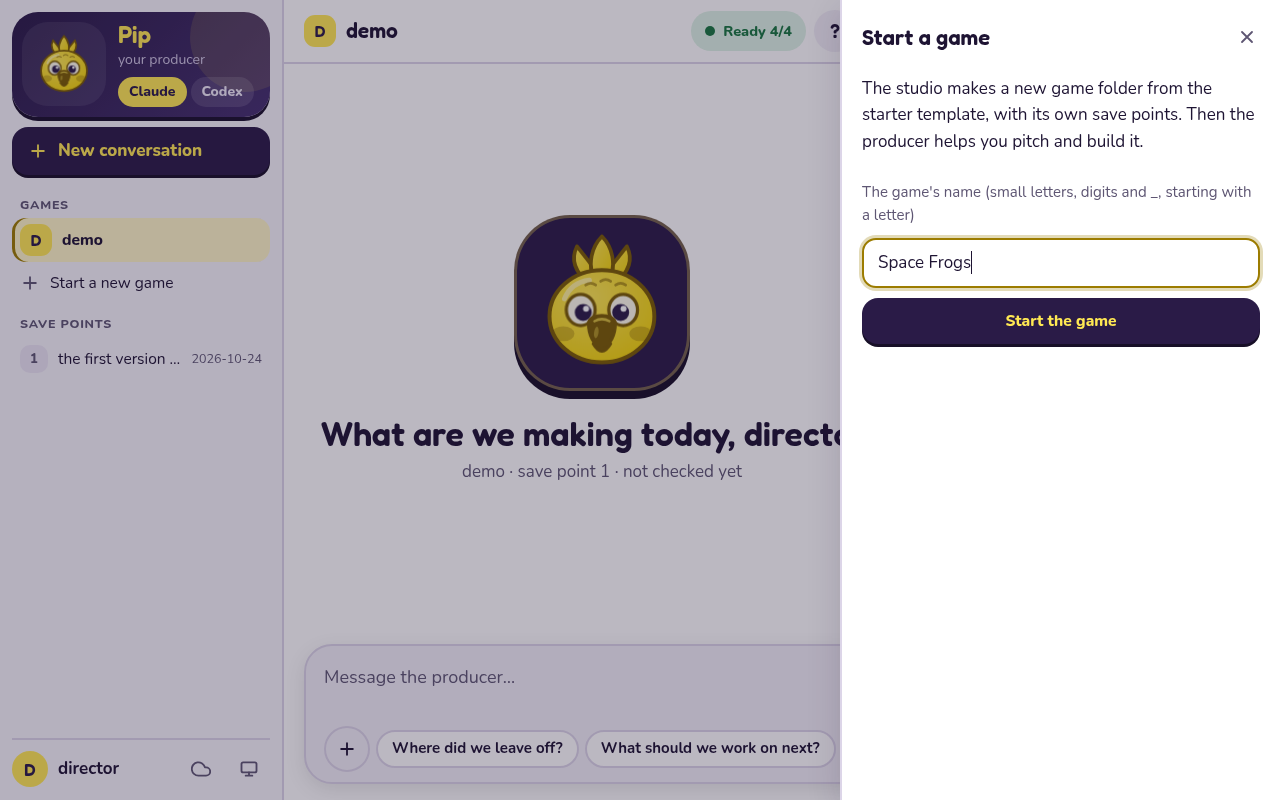
With no game in games/ the greeting says so and offers Start a game; Start a new game in
the sidebar does the same at any time. Type a name (spaces and dashes become _, capitals become
small letters, so "Space Frogs" is space_frogs) and Studio makes the game and opens it. A
problem with the name is said in plain words: it has to be small letters, digits and _, start
with a letter, be at most 40 characters, and not be taken. You get the same thing as para new in
a terminal: a copy of template/ in games/<name>/, a git repository of its own. Starting a game
is refused while another Check, Save or Backup step is running.
Talking to the producer
The chat is the same producer you get in a terminal, in a page. It runs the claude program
you installed and signed in to (or codex), one turn at a time for each game, in your paraloop folder.
- Accounts. Studio never reads, asks for, stores, logs, forwards or shows a login, a token or
an API key, and has no sign-in screen. It only starts the unmodified program you installed and
signed in to yourself. Install Claude Code from Anthropic's setup page
(https://code.claude.com/docs/en/setup; on Windows that is your step, Studio installs nothing),
then open a terminal once, run
claudeand sign in. An API key, set the way Claude Code's own setup describes, is the documented path; a Pro or Max login is your own choice. Using Claude costs your own plan or API credit. Nothing is sent until you press one of the suggestions ("Where did we leave off?" or "What should we work on next?") or send a message. - Claude or Codex. Pip's card lists the producers this computer can use and lets you pick one
per game. Claude is the default until you pick Codex for a game. A pick takes effect from the
next message and is refused while a turn is running. Each has its own chats, so
switching back resumes where that one stopped; the one you switch to has not seen the other's
chat and picks the game up from its notes (
PLAN.md,NOTES.md) like any fresh producer. For Codex, install Codex CLI from OpenAI's page (https://developers.openai.com/codex/cli; on Windows that is your step), open a terminal once, runcodexand sign in. Using Codex costs your own ChatGPT plan or OpenAI API credit. In the setup checklist (the pill in the header) the pick works before you have a game: when the producer in use is not installed or not signed in and the other one is installed, the checklist offers Use Codex instead (or Use Claude instead). That pick is for the whole studio, and a game with no pick of its own starts with it; you can still pick per game later. - Which model and how hard it thinks. Under Pip's name, with a game open, a Speed menu
picks how hard that game's producer thinks: Quick (a cheaper model on medium effort),
Standard (the default: Studio asks for nothing and the tool's own settings decide) or Deep
(the strongest model on high effort, slowest). It is remembered for each game, applies from the
next message, and is greyed out while that game's producer is working. Helpers keep following the
producer's playbook either way. A small line below says which model and effort the producer
reported for its last message ("Claude · claude-opus-5-5 · high effort"), with "(asked for)" where
the tool did not report back what Studio asked it for (for Codex
default effortmeans the model's own default; Claude does not report its effort). Until the first message there is nothing to show. If a turn feels slow, Quick is the first thing to try. Where the models come from: Claude gets its ownsonnetandopusaliases (speedTiersintools/para/claudeagent.nim); Codex's are picked from the models it lists itself, and if it lists none Studio says so and uses Codex's own settings. - One turn at a time for each game. Two games can each have the producer working at once
(the games list says "Working" beside them). A game's Check, Save and Backup wait while the
producer is working on that game, and the other way round; another game's do not. Only one
Check, Save or Backup step runs at a time. A third game waits while two others have helpers
building, to keep your computer from running out of memory. Stop ends the turn of the game
you are on, and everything it started. A turn is stopped after
--turn-timeoutminutes (default 60; long builds are normal). A Check, Save or Backup step that is still running after 30 minutes is stopped too, with a line saying so, so one stuck step never holds the others. - Chats. Each game keeps every chat you had with its producer, and a restart or a reopened page picks up the one you were in. New chat starts a fresh one; see "Your chats" below.
- Helpers (builder, checker, scout) show as cards in the chat.
Your chats
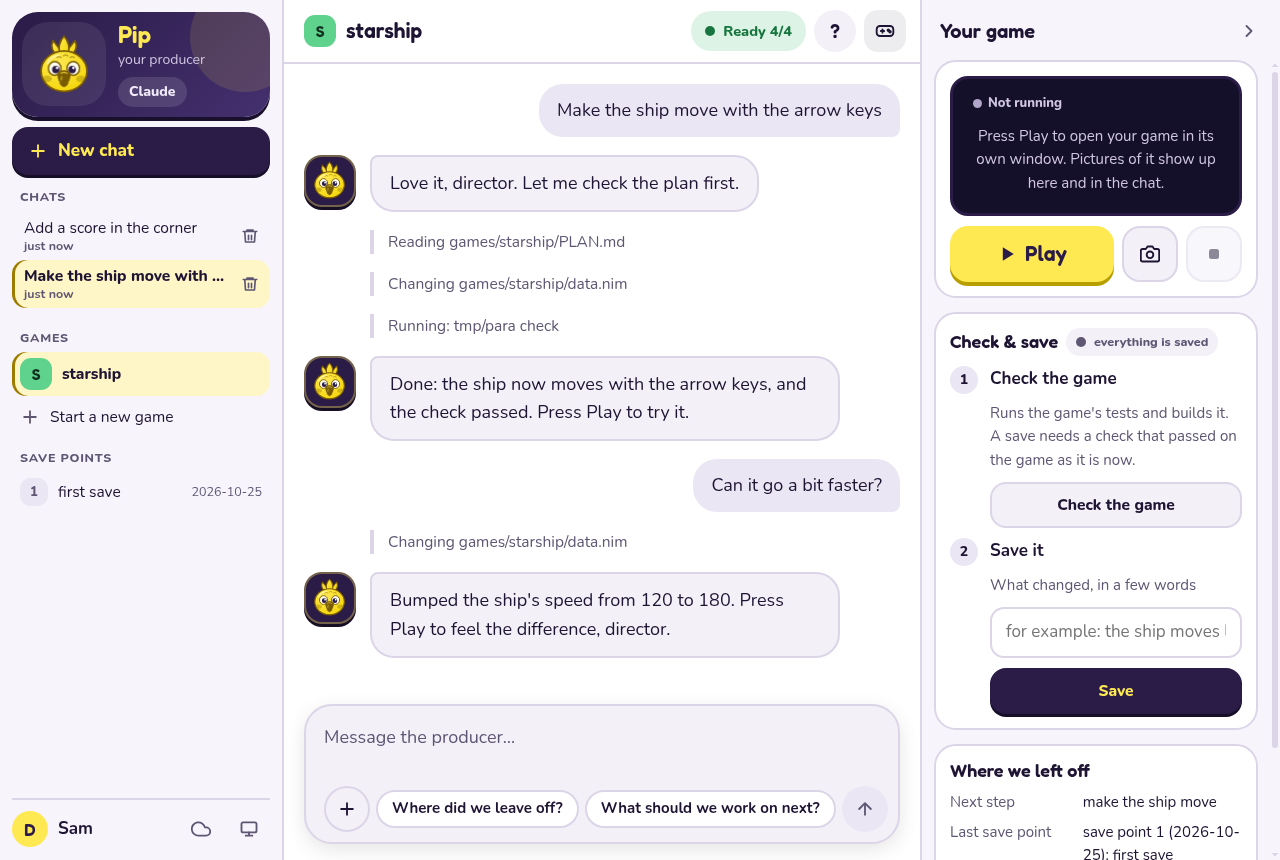
The Chats list under New chat on the left has your earlier chats with this game's producer, the one you used last at the top. Each shows the start of the first message you sent in it and when you last used it (for example "5 min ago", "yesterday" or "12 Oct").
- Pick one to go back to it. Its messages show again as they were: what you wrote, what the producer said, its "Reading ..." and "Running ..." lines, helper cards and notes. The producer carries on that same conversation, so just keep talking. This works after you close and start Studio again too: the chat you were in opens with its messages.
- Chats from before Studio kept messages (ones that showed only a title) get their messages back the first time you open them, from Claude's own record of the conversation on this computer. Studio only reads that record, for that one conversation, and then keeps the messages in its own file, so this happens once. Thinking, tool results and what helpers said among themselves are not shown, the same as in a live chat. When there is no record (it was removed, or the chat was with Codex, whose records Studio does not look up), the chat opens with a plain note that its earlier messages are not kept, and the conversation still continues from where it left off.
- New chat starts a fresh one. Your earlier chats stay in the list. Until you send its first message, the new chat is the "New chat" line at the top of the list.
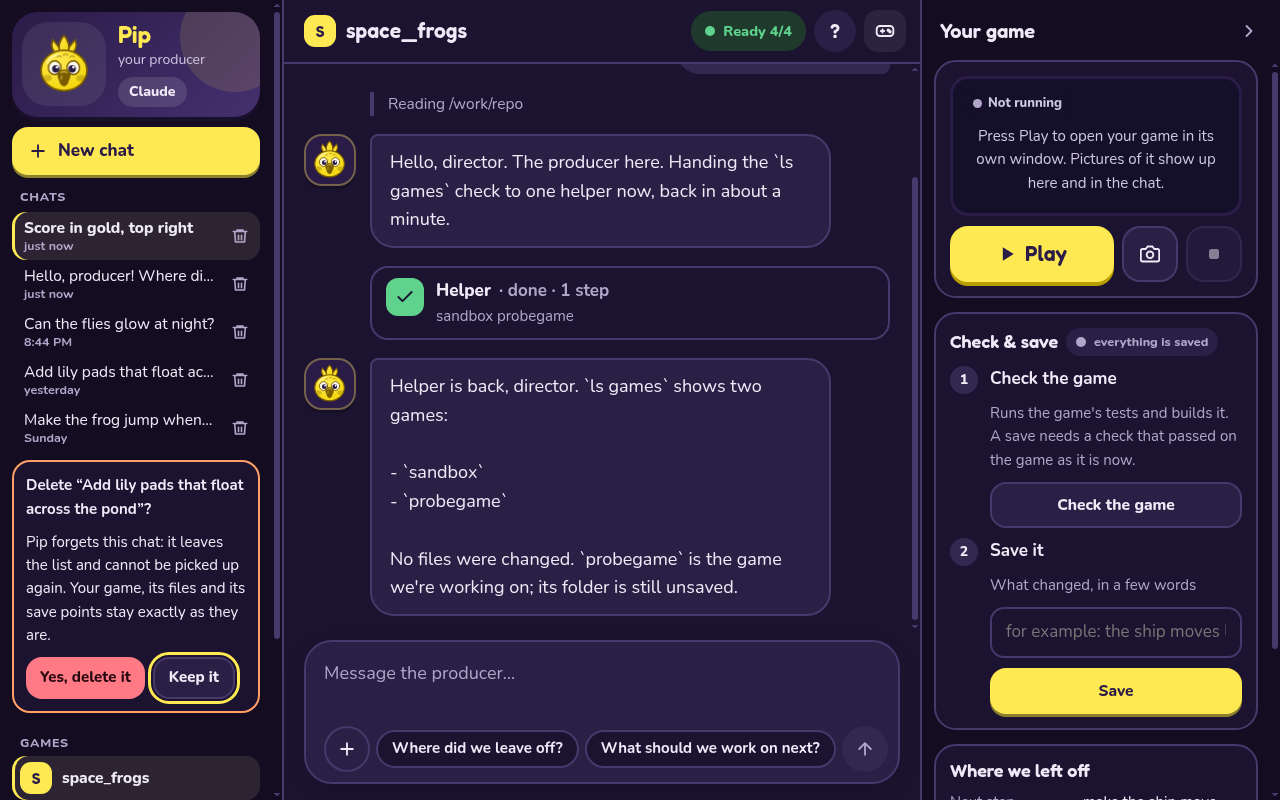
- Delete (the bin next to a chat) asks first. Saying yes takes the chat off the list for good and removes its messages from this computer, and you cannot pick it up again. Your game, its files and its save points stay exactly as they are.
- While the producer is working the list is greyed out: wait for the answer, or press Stop, then pick or delete a chat.
- Each producer keeps its own chats: with Codex picked, the list shows your chats with Codex.
- Chats stay on this computer, in the
tmp/studio/folder: they are never uploaded, never part of a save point or a backup, and a chat's Delete removes them. For each chat Studio keeps its title (the start of your first message, at most 60 letters), when it started and was last used, the producer's own number for the conversation, and its messages as the chat showed them. Anything that looks like a key or a password is taken out before it is written down. - A very long message is kept up to about 16,000 letters, with a note where it was cut. Each chat keeps about its last 500 KB of messages; past that its oldest messages are left out and the chat starts with a note saying so. Your conversation with the producer is not affected: it carries on from where it left off either way.
Helpers work in their own copy
When the producer hands a step to the builder (or a picture to the art helper), that helper gets its own copy of your game and works only there. Your game stays exactly as it was, so Play always plays the last finished version while a helper is busy, and two helpers can work at the same time without getting in each other's way: say, the builder on a new rule while the art helper draws the ship. You never make or tidy these copies yourself; Studio and the producer do.
Under Pip's card a short line says what each helper is doing: "Builder is working on your change", "Checking it", "Art helper is drawing". When a helper is done and its work passed the checks, the producer puts it into your game, and then Check and Save work as always.
If Studio or the chat was closed while a helper was working (a crash, a closed window), nothing is lost: the helper's work waits in its copy. Next time, the line under Pip's card says "Builder's work from last time is waiting" with two buttons. Land it puts that work into your game as unsaved changes (then press Check, then Save); Keep it leaves it for the producer, who will mention it when you next talk. If the helper and your game both changed the same thing, or you have unsaved changes to a file the helper also changed, Land it says so in plain words and changes nothing in your game.
What the producer can and cannot change
The producer and its helpers can change files in your game folder (games/) and nothing else. The
producer writes PITCH.md, PLAN.md, CHOICES.md, DESIGN.md, PLAYTEST.md and NOTES.md
there, and the builder, checker and scouts change the game's code and reports there. Everything
outside games/ stays read-only in Studio: the playbooks (.agents), .claude/settings.json,
AGENTS.md, tools, src, docs, tests, template, skills and the files at the top of the
repository. A game's own .git folder is refused too; saving goes through Save (para save). If
something wants to change a file outside games/, the chat shows, for example:
The producer wasn't allowed to change
AGENTS.md: in the studio it can only change files inside your game folder (games/). To change the studio itself, use the terminal.
and the producer is told not to work around it. A command that is not on the producer's list is refused too, and the chat says so in plain words ("A helper wasn't allowed to run ... Ask the producer to do it a different way.") instead of hanging. These permissions only take effect in a folder Claude Code trusts (see the first-run card and "If something goes wrong" above).
Play and screenshots
Play builds the game (the first time takes a few minutes, later ones are quick) and opens its
own window on this computer. The page says how the build is going, and if the window cannot open
it says why in plain words and what to do (the game did not build, this computer has no screen for
it, the graphics driver cannot do OpenGL). Stop game closes the window. Pressing Play again
closes the old window and starts over, so there is one game window at a time, and closing Studio
(Ctrl+C) closes it too. Show me a screenshot asks the open window for a picture and puts it in
the chat as a card; Studio keeps the newest 20 in tmp/studio/shots/ and deletes older ones. If
the window Studio opened belongs to a different game than the one picked on the page, the
screenshot is refused and the page says which game is open. Play is refused while a Check, Save or
Backup runs, and a Check, Save or Backup waits while Play is still building the game. The producer can ask you to press either.
Visual boards
When a choice is easier to see than to read (art options, picking a look, screenshots to compare,
a plan with options), the producer can put it on a board: a page in your browser where you
click your picks, leave a note if you like, and press one button, and it comes back to the
producer. The answer is written down in your game's CHOICES.md like any other choice.
-
With Lavish (optional) the board is live: the button sends your picks straight back to the producer. Lavish is
lavish-axi, a free program (MIT licence) by Kun Chen from the npm registry (https://www.npmjs.com/package/lavish-axi); it needs no account but needs Node.js 22 or newer, which Studio itself does not. It is never installed for you. To add it, run this in a terminal in the Studio folder:tmp/para board installIt says what it installs (
lavish-axi0.1.92, the version Studio was checked with), from where, into which folder and how big, then asks a plain yes or no; onlyyoryesinstalls. It never uses admin rights: if npm would need them, it stops and says so. -
Without Lavish the board is the same page, opened on its own; its button copies your picks as one line for you to paste into the chat. In Studio the screenshots in the chat (Show me a screenshot) work too.
It stays on your computer. Studio runs Lavish on 127.0.0.1 only, on its own port (4388) with
its own settings in tmp/lavish/. Left to itself Lavish would also listen on your Tailscale
address when Tailscale is running (so a phone on your tailnet could open a board); Studio turns
that off, and closes a board at once if Lavish ever gives a link that is not on this computer.
Studio also switches off Lavish's anonymous usage counts and its Publish menu item, which
would otherwise put a copy of the board on a public website (ht-ml.app): with Studio it fails and
nothing leaves the computer. Lavish stops by itself once no board is open, or after 30 idle
minutes.
Boards are scratch pages in games/<game>/review/, made from one shared template so every board
looks the same: the Studio's colours, fonts and Pip, in light and dark, or your game's own palette
when its art/style.toml names one. New games leave review/ out of their save points.
Check, Save and Backup
They do what the same commands do in a terminal (para check, para save -m,
para backup --push --yes), so their guards still hold: a save needs a fresh passing check, and a
backup only goes to the remote named backup, never to origin, and only after you click yes. A
save's note is one short line (up to 200 characters, no control characters).
Save and Backup work in the game's own git repository (games/<game>/.git, which para new
makes); a game without one is saved in the repository that contains games/, as before.
Two copies, two studios
One studio runs one chat turn at a time for each game (that game's Check, Save and Backup wait for
it), because the producer changes files in the game's folder. Inside that one turn the producer's
helpers already work at the same time, each in its own copy (see "Helpers work in their own copy").
To hold two conversations about the same game, keep two copies of the folder and run a studio in each. They share nothing: each has its own
files, tmp/ and save points, so they cannot step on each other.
git clone <the folder you have now> ../parastudio-b      # a second copy (or clone the repository again)
cd ../parastudio-b
nimble install -d -y && nimble setup
nim c --hints:off --outdir:tmp tools/para/para.nim
tmp/para studio --port 8788 --game <the other game>    # the first studio keeps its own port and link
Put the two browser tabs side by side. Each studio prints its own link (the key in it differs), and
each copy can use a different producer: pick Codex on the page in one, leave the default in the
other. Run claude and codex once in the new folder to answer their trust question. A save
lands in the copy it was made in; the simplest way to keep things straight is one game per copy.
Bringing the two lines of work together later is the git merge a terminal user would do (git fetch ../parastudio-b then git merge), not a step the page has.
Changing Studio itself (how it binds, the checks, the chat's commands, the source files, tests and fonts)? See studio-maintainers.md.